This tutorial outlines the steps needed to onboard a new customer by creating a support bot in GHL using materials provided by Dr. Gene.
Begin by creating a support bot in GHL using the material provided from Dr. Gene for the conversion AI v2.
Name the bot according to the company name, followed by Helper. For example, if the company name is "Acme," you would name the bot Acme Helper.
Select Autopilot to start and proceed to set up the AI inside Go High Level.
Set up the support communication by selecting SMS, the Instagram Facebook chat widget, and live chat.
Under bot goals, request details from Dr. Gene so that the bot prompt details can be added to the prompt, which will also apply to the bot training material.
Next, add the company website details, any GHL site links, and any GHL funnel links necessary to train the bot.
Proceed to create the automated follow-up bot for the appointment funnel.
Set up the appointment funnel bots and the testimonial system within GHL, as well as all product and service flows in the automation tab provided by your content writer.
If additional setup is necessary, Dr. Gene will provide you with the separate automation flows. Utilize the workflow feature to create the appointment funnel incorporating the voice agent. Lastly, ensure to set up the reputation manager with both Google and Facebook as the sources.
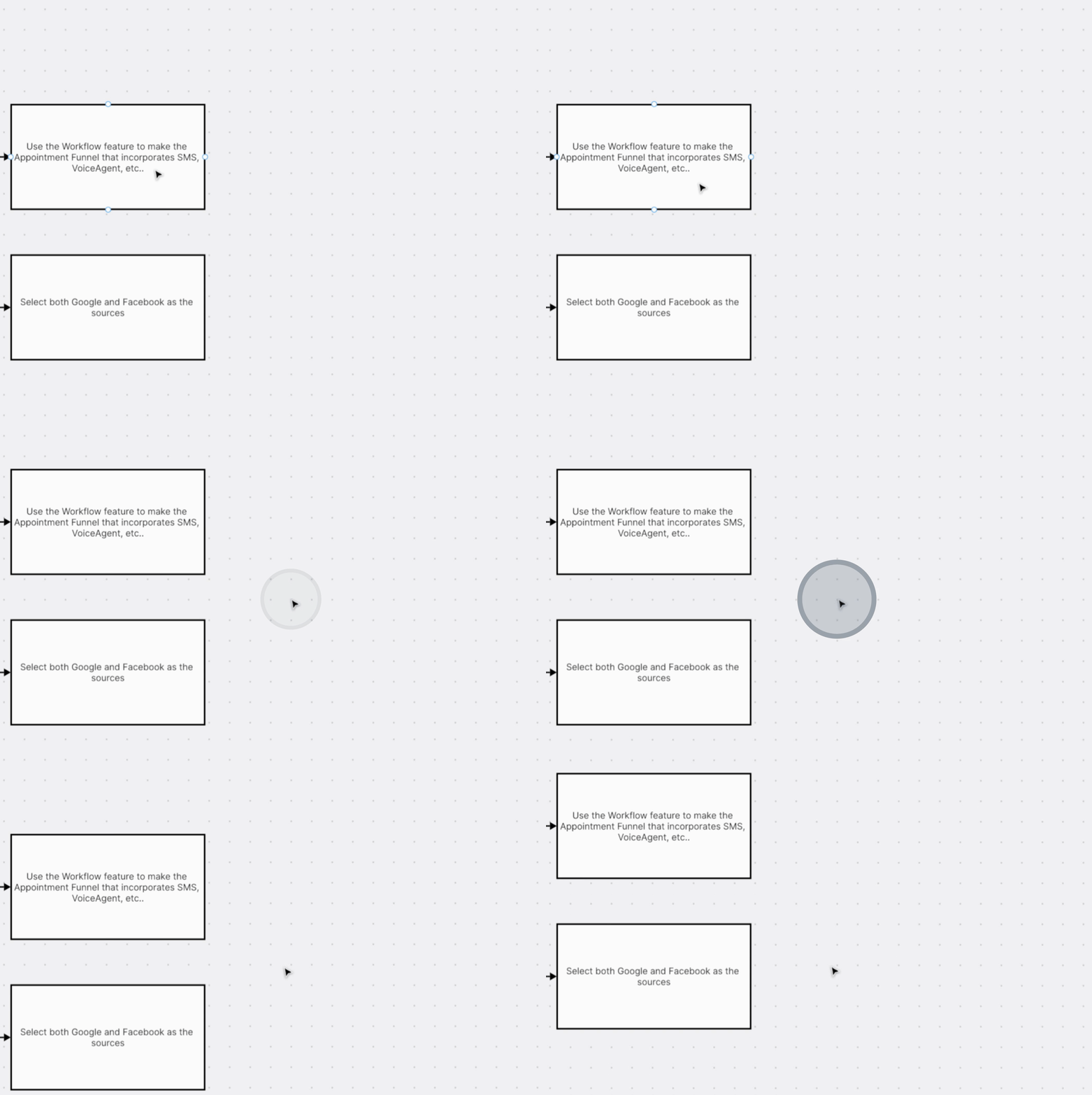
This concludes the full step one setup for the appointment funnel.
By following these steps, you will successfully set up the support bot and related systems to onboard a new customer for Startlen Finish Big.
